Virtual Staging App: How to Stage a Listing From Your Phone at the Property

Stageless Team
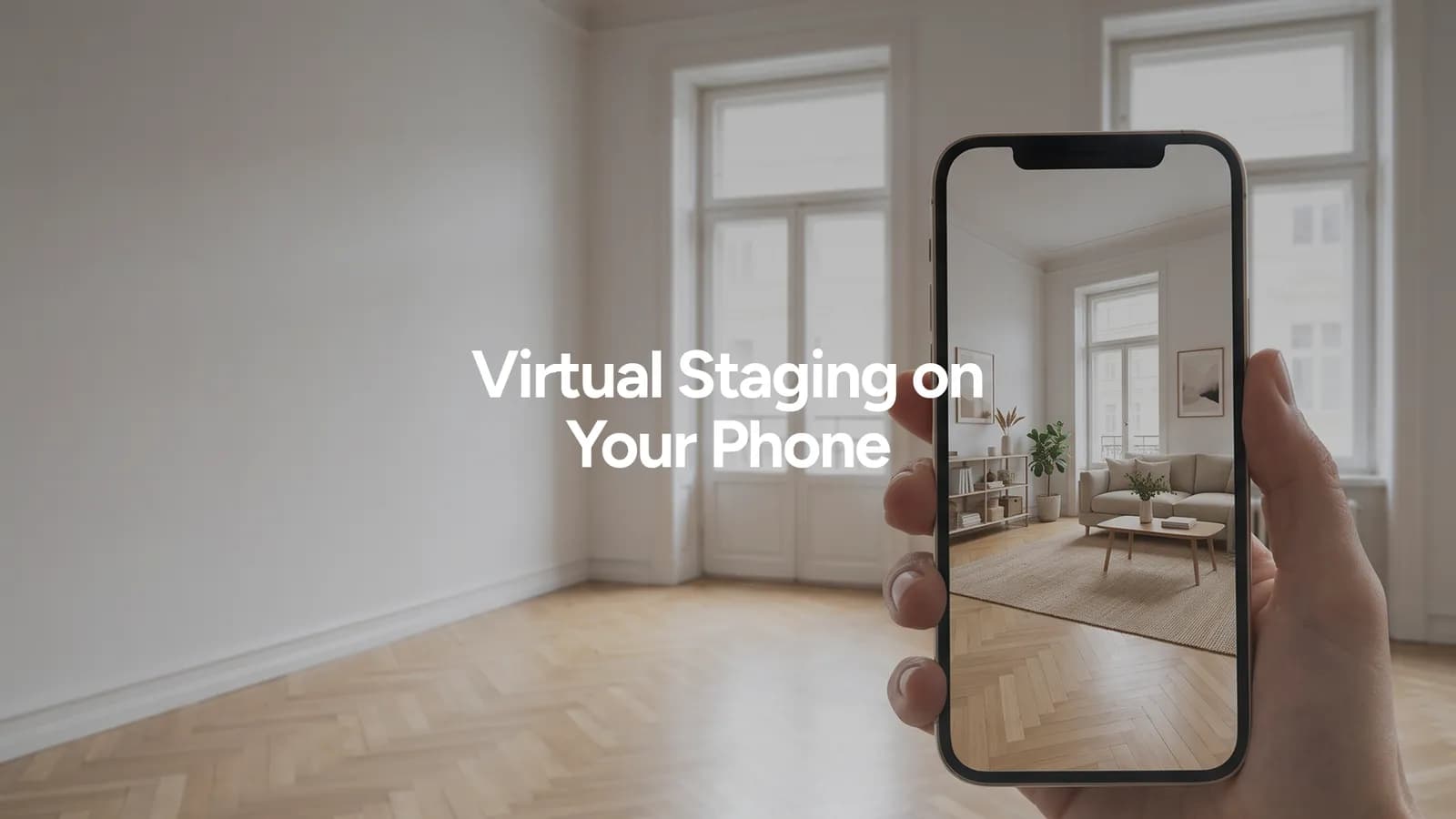
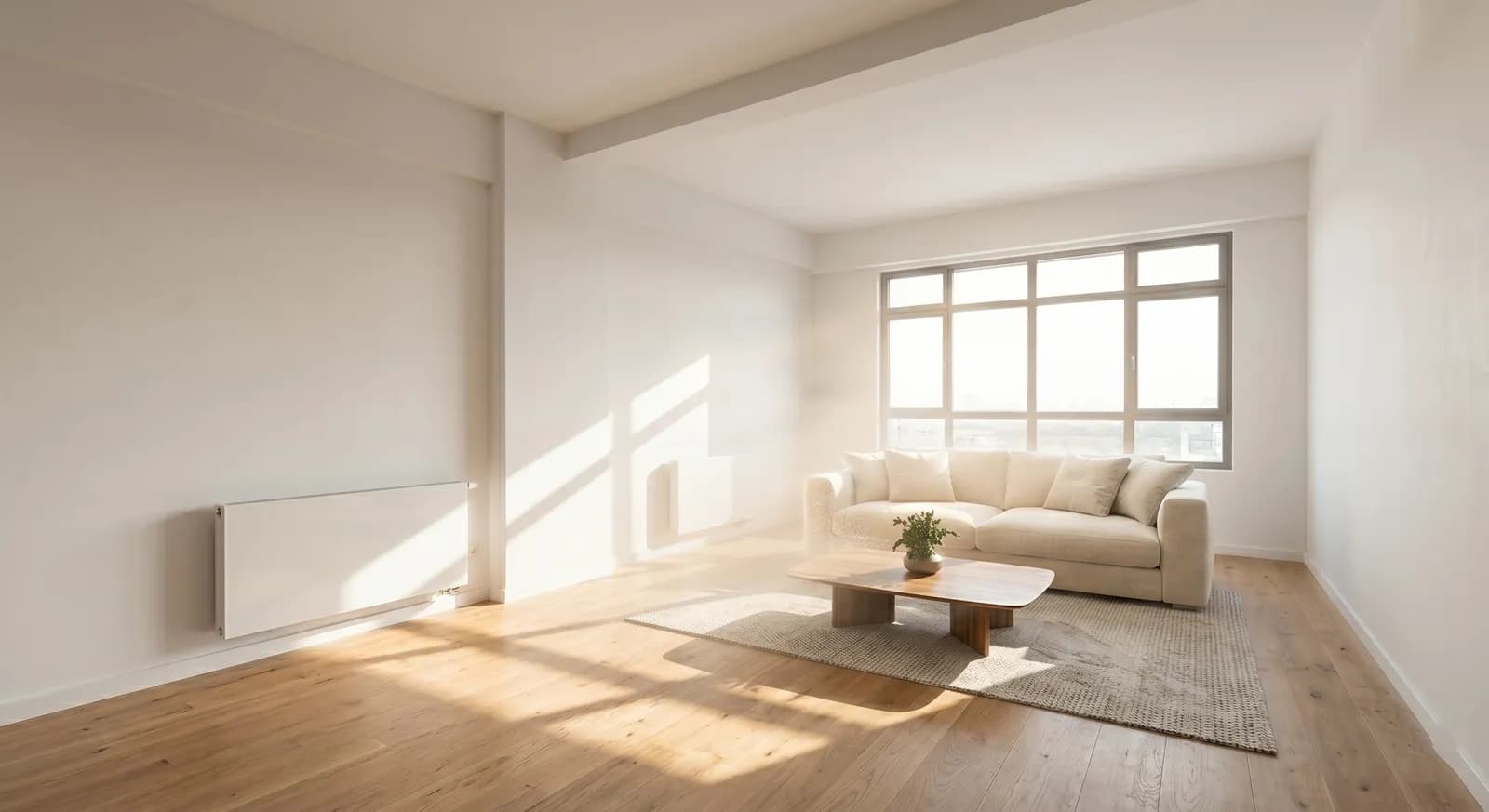
A virtual staging app lets you photograph an empty room on your phone and see it furnished before you leave the property. For an agent with twenty listings a month, that changes the order of work. The seller sees the staged living room during the visit. The listing can go live the same afternoon. Nobody waits two days for a studio.
This guide is about phone and on-site use. It compares native apps, web apps and desktop virtual staging software. It checks which providers really have an app in the App Store or Google Play. It ends with a step-by-step workflow and a timed example for a 10-photo listing. We make a dedicated tool, Stageless AI, so read with that in mind. If you want a general ranking of tools, read our list of the 10 best AI virtual staging tools instead.
Why Agents Want a Virtual Staging App on the Phone
The phone is already the agent's camera, inbox and contract folder. Most listing photos for standard flats are taken on a phone, not a full-frame camera. The gap is what happens after the shoot.
In a desktop workflow, the photos travel to the office, then to a laptop, then to a staging service. The seller hears back days later. With a phone workflow, the photo is staged within a minute of being taken. That has three practical effects.
- You see problems while you are still in the room. If the AI cannot read a photo, you reshoot it now, not after a second trip across town.
- The seller sees the result at the visit. A staged before and after on your screen is a strong argument when you are asking for an exclusive mandate.
- The listing is ready the same day. The listing starts collecting views days earlier.
Native App, Web App or Desktop Software
"App" covers three different things. They behave differently on site.
| Native app | Web app in the phone browser | Desktop software | |
|---|---|---|---|
| How you get it | App Store or Google Play | Open the website and log in | Installed on a computer or used as a website on a laptop |
| Works on site | Yes | Yes, with mobile data or Wi-Fi | No, only after you are back at a desk |
| Updates | Through the store | Automatic, nothing to install | Varies |
| Storage on phone | Takes space | Almost none | Not applicable |
| Camera access | Inside the app | Through the browser's photo upload | Photos must be transferred |
| Best for | Agents who want one tap from the home screen | Agents who want the same account on phone and laptop | Photographers editing large batches |
A native app is not automatically better. Many agents stage on the phone at the property, then do a final check on a laptop before publishing. A web app gives you the same account, credits and images on both screens with nothing to install. What matters is whether the tool is fast and accurate with phone photos.
One point applies to all three. AI staging runs on the provider's servers, so you need a data connection at the property. In a basement flat with no signal, shoot first and upload from the street or the car. Our explainer on how AI virtual staging works covers what happens on those servers.
Stageless AI on a Phone: What It Is and What It Is Not
Stageless AI has no native app. You will not find it in the App Store or Google Play. It is a web platform that works in the phone browser. The homepage describes this as "Mobile Take & Edit on Site" and says you can furnish empty rooms "straight from your phone".
In practice, you open stageless.ai in Safari or Chrome, log in, upload a photo from the camera roll or take one directly, choose a style and get the staged image. Processing takes under 30 seconds per image, according to the site. The output is 4K. The price is €0.60 per photo. The site states "100% preservation of original structure, depth and perspective", so walls, windows and floors stay where they are.
If you want it one tap away, both phone systems let you put a website on the home screen. This is standard browser behaviour, not a Stageless feature.
- iPhone: open the site in Safari, tap the Share button, then tap "Add to Home Screen". Apple's iPhone User Guide describes these steps.
- Android: open the site in Chrome, tap the three-dot menu, then "Add to Home screen".
The icon opens the website. It is a shortcut, not an installed app.
Plans, checked on stageless.ai in October 2026: a free Trial with 20 credits valid for one month (images are watermarked and for personal use only), Base at €10.99 a month with 20 credits and one video tour, Pro at €44.99 a month with 100 credits and three video tours. There is no commitment. You can cancel at any time.
What to Look For in a Virtual Staging App
Test any virtual staging app or virtual staging software with your own phone photos before paying. Check these points.
- Phone photos as input. Phone images have more noise in dark rooms and stronger lens distortion. A tool that only looks good on professional photos will disappoint you on site.
- Structure kept. Windows, doors, radiators and the floor line must not move. If the AI shifts a window or invents a doorway, the image is unusable.
- Resolution. Portals compress uploads. Start from 4K if you can so the image stays sharp on a large screen.
- Speed you can use on site. Seconds or minutes, not hours. If the result arrives tomorrow, it is a service with an app attached, not an on-site tool.
- Price per photo. Work it out per listing. Ten photos at €0.60 is a different decision from ten photos at $16.
- Retries. You will rerun some rooms. Check what a new version costs.
- Labelling. Under Article 50 of the EU AI Act, AI-generated or manipulated images must be disclosed. Plan a "virtually staged" label from the start. Our summary of the AI Act disclosure rules explains the details.
- Account access on phone and laptop. You will want to find the same images later at the desk.
- Who made the app. App store names are not trademarks you can rely on. See the section on lookalike apps below.
Virtual Staging Apps and Software Compared (October 2026)
We checked each provider's own site and the App Store in October 2026. "No native app found" means the provider's site has no App Store or Google Play link and we found no official listing. Our comparison of virtual staging companies covers prices and turnaround in more detail.
| Tool | Native app | How you use it on a phone | Speed | Price shown |
|---|---|---|---|---|
| Stageless AI | No | Web platform in the phone browser | Under 30 seconds per image | €0.60 per photo, plans from €10.99 a month |
| Virtual Staging AI | No native app found | Website | About 10 to 15 seconds, per its homepage | From $16 a month for 6 photos, $39 a month for 60 |
| REimagineHome | No native app found | Website | Not stated on homepage | Free tier with 5 designs, plans in a $14 to $99 a month range |
| Collov AI | No native app found | Website | Not stated on pricing page | From $19 a month for 60 photo credits |
| Pedra | Yes, iPhone and Android | Mobile app for video and 360° photos, included only with the annual plan | Not stated | Pro €29 a month for 100 credits, annual €239 |
| Apply Design | No native app found | Website, accepts photos "taken by any device" | 15 minutes for auto staging | About $10.50 to $15 per image, DIY from $7 |
| BoxBrownie | Yes, iPhone (SnapSnapSnap) | Shoot in the app, send for professional editing | 48 hours for virtual staging, per the App Store listing | Pay per edited photo, no subscription |
Notes on each tool
Virtual Staging AI is fast and cheap per photo on its larger plans. Its pricing page lists $39 a month for 60 photos and $79 a month for 150. Its homepage mentions no mobile app, so on site you use the website in the browser.
REimagineHome offers a free tier with five designs. Its homepage has no App Store or Google Play link. Be careful with the App Store here. An app called "Reimagine Home AI" is listed there by an individual developer, with links to a different website. Nothing on that listing connects it to REimagineHome.ai.
Collov AI shows four plans on its pricing page, from Standard at $19 a month with 60 photo credits to Enterprise at $127 a month. We found no mobile app mentioned.
Pedra is the clearest case of a provider with a real mobile app. Its pricing page says "Pedra for mobile" runs on iPhone and Android and is included only with the annual plan. The features listed for the phone are video recording and guided 360° photos. Virtual staging costs 1 credit per image.
Apply Design works through the website and says uploads can come from any device. Its pricing page lists a 15-minute turnaround for auto staging at about $10.50 to $15 per image, with a DIY option from $7.
BoxBrownie has a native iPhone app called SnapSnapSnap, published by BoxBrownie.com Pty Ltd. It is a capture app. You shoot through it and send photos for human editing. The listing mentions results in 24 hours for photo editing and 48 hours for virtual staging. It is a good fit if you want a studio to do the work. It is not instant staging on site. Studio services without an app work the same way. Styldod, for example, lists $16 per image for orders of 8 or more, $23 below that, with 24 to 48 hour delivery.
Native staging apps do exist
Some real estate staging apps are native. Stager AI Real Estate Editing, by the Spanish company Tramontana Tech, is in the App Store, with monthly subscriptions listed from $24.99. If a native app matters to you, test apps like this one with the same photos you use for the others.
Watch out for lookalike apps
Search "virtual staging AI" in the App Store and you get several apps with that phrase in the name. One of them, "Virtual Staging AI - Stager", is published by a company called REIMAGE AI INC. It is not the company behind virtualstagingai.app. Before you subscribe, check the developer name on the listing against the provider's own website. Weekly subscriptions are common in these apps. Read the price list before the free trial ends.
Consumer design apps are a different tool
Homestyler and Planner 5D have native apps with AI features. Homestyler lets you upload a photo of an empty room to build a room template. Planner 5D has a Camera Mode and an AI designer that furnishes a room. Both are built for people planning their own homes: 3D models, furniture catalogues, floor plans. They are useful for a buyer imagining a renovation. They are not designed to produce a listing photo that keeps the original room exactly as it is.
Step by Step: Staging a Listing From Your Phone at the Property
This is the on-site workflow we recommend for any virtual staging app. The examples use Stageless AI in the phone browser.
1. Prepare the room in two minutes
Open blinds and curtains. Switch on every light, including lamps and the extractor hood light. Close toilet lids and cupboard doors. Remove bins, cables and shoes. If the room is occupied, decide now whether you will use AI declutter before staging.
2. Shoot each room correctly
- Hold the phone horizontally.
- Stand in a corner, so you see at least two walls and a good part of the floor.
- Keep the phone at about chest height, roughly 1.2 to 1.5 metres. Too low exaggerates the floor. Too high shows mostly ceiling.
- Keep the phone level. Turn on the camera grid and align the vertical lines of door frames with it.
- Use the 1x lens by default. The 0.5x ultra-wide makes rooms look larger than they are and bends walls at the edges. If you need it for a tiny bathroom, check that the result is still honest.
- Leave HDR on. It helps with bright windows in a dark room.
- Take two angles of each main room. You will pick the better one to stage.
3. Upload and choose one style
Upload the photos of rooms that need staging: living room, kitchen, main bedroom, any empty room a buyer will struggle to read. Choose one style for the whole property, for example Nordic or Modern. Keep it for every room. Mixed styles make one flat look like three.
4. Check every image at full size
Zoom in. Look at the floor line, the shadows, the windows, the doors and the radiators. A bed should sit on the floor, not float above it. A sofa should not block a door. If something is off, rerun the room or reshoot it from a better angle while you are still there.
5. Label the staged images
Add "Virtually staged" to every staged image or caption. Keep the original photo of each room to publish alongside it. Under Article 50 of the EU AI Act, AI-generated or manipulated images must be disclosed.
6. Show and send to the seller
Show the before and after on your phone during the visit. If the seller wants a copy, send the images by WhatsApp. To keep full quality, send them as a document or file rather than as a photo, because WhatsApp compresses normal photo messages.
7. Publish
Upload the staged images first in the portal gallery, with the original photos next to them. If you also produce an AI video tour, generate it from the staged photos so the video matches the gallery.
Worked Example: a 10-Photo Listing
A two-bedroom flat, empty, ten photos. Six rooms need staging: living room, kitchen, two bedrooms, dining area and a small study. Four photos stay as they are: bathroom, hall, balcony and façade.
| Step | Phone workflow at the property | Studio workflow after the visit |
|---|---|---|
| Shooting 10 photos | 20 minutes | 20 minutes |
| Transfer and order | 2 minutes to upload in the browser | Evening at the office, about 15 minutes |
| Staging 6 rooms | Under 30 seconds per image, about 10 minutes with checking | 24 to 48 hours delivery (Styldod) |
| Reruns | 2 rooms rerun on site | Revision request, more waiting |
| Seller sees result | During the visit | One to two days later |
| Cost of staging | 8 images at €0.60 = €4.80 | 6 images at $23 = $138 |
| Listing live | Same day | Day 2 or day 3 |
The phone workflow adds about 12 minutes at the property. It saves the office session, the wait and a second conversation with the seller. Across 20 listings a month with six staged rooms each and two reruns per listing, the AI cost is 160 images at €0.60: €96. The Pro plan's 100 credits cover about 12 listings of this size. Beyond that, you add credit packs.
Phone Photography Tips That Improve AI Results
The AI can only work with what the photo shows. Better input gives you fewer reruns. Our guide to AI real estate photo editing covers light and colour correction in more depth.
- Clean the lens. A fingerprint smear softens the whole image. Staging cannot fix it.
- Tap to set exposure on a wall, not on the window. Then lower the brightness slightly if the window is blown out.
- Avoid mixed light where you can. Warm bulbs in one corner and cold daylight in another confuse colour. Switch everything on or rely on daylight.
- Show the floor. The model needs to see where the floor meets the walls to place furniture at the right scale.
- Do not shoot into a mirror. Reflections of you and your phone end up in the staged image.
- Shoot empty rooms empty. A single box or a ladder in the corner may be kept or turned into something odd. Remove it first or use declutter. If the room is occupied, our guide shows how to remove furniture with AI.
- Take one extra wide shot of open-plan spaces. It is easier to stage one clear view than three tight ones that do not match.
Common Mistakes
- Staging every photo. Bathrooms, halls and façades rarely need it. Stage the rooms buyers decide on.
- Using the 0.5x lens everywhere. Buyers who see a stretched living room online and a smaller one in person lose trust in the listing.
- Mixing styles between rooms. Pick one style for the property.
- Over-furnishing small rooms. A double bed in a box room makes the room look smaller and sets up a disappointing viewing.
- Skipping the full-size check. Mistakes are visible on a laptop screen even when they look fine on a phone.
- Forgetting the label. Unlabelled staged images break EU disclosure rules.
- Sending compressed images to the seller and then publishing those. Always publish from the original exported file.
- Downloading the first app with the right name. Check the developer before you pay.
When Desktop Software Still Makes Sense
The phone is the right tool for standard listings and same-day publication. A laptop is still better in a few cases.
- Large batches. A photographer delivering 40 images for a development will work faster on a big screen.
- Premium listings. For a hero image, check details at full size on a calibrated screen before publishing.
- Virtual renovation. Showing new floors or a refitted kitchen needs closer review than adding furniture.
- Team review. When a colleague or the seller must approve images, a shared screen in the office is easier.
A web platform covers both cases with the same account. You stage on site from the phone, then open the same images on the laptop for the final check.
Sources
- Stageless AI homepage, checked October 2026
- Stageless AI plans, checked October 2026
- Virtual Staging AI homepage, checked October 2026
- Virtual Staging AI pricing, checked October 2026
- REimagineHome homepage, checked October 2026
- App Store, Reimagine Home AI listing, checked October 2026
- Collov AI pricing, checked October 2026
- Pedra pricing, checked October 2026
- Apply Design homepage, checked October 2026
- Apply Design pricing, checked October 2026
- App Store, SnapSnapSnap by BoxBrownie.com, checked October 2026
- Styldod virtual staging pricing, checked October 2026
- App Store, Stager AI Real Estate Editing, checked October 2026
- App Store, Virtual Staging AI - Stager listing, checked October 2026
- App Store, Homestyler, checked October 2026
- App Store, Planner 5D, checked October 2026
- Apple iPhone User Guide, bookmark favourite webpages
- How-To Geek, add a website to your Android home screen
Written by Stageless Team
We are a team of real estate technology experts passionate about AI. Our mission is to help agents sell faster by democratizing access to high-end virtual staging tools.